Visualizing Detection Coverage
- This step is intended to be performed on a CVA/H 3.7 DIP configured IAW 262COS-DIP-SOP-001
- A file copy of the custom 262COS Elastic Detection Rules that come preloaded on DIPs configured IAW 262COS-DIP-SOP-001 is available for download on the fileserver under
\\fileserver\share\share\ANALYTICS\00_ELASTIC\.
Kibana 8.10.x comes with a built-in MITRE ATT&CK coverage map to help visualize coverage of the loaded Elastic Detection rules, but the feature is still buggy and inaccurately displays far less coverage due to erroneuous parsing of the technique IDs associated with each Elastic Detection rule.
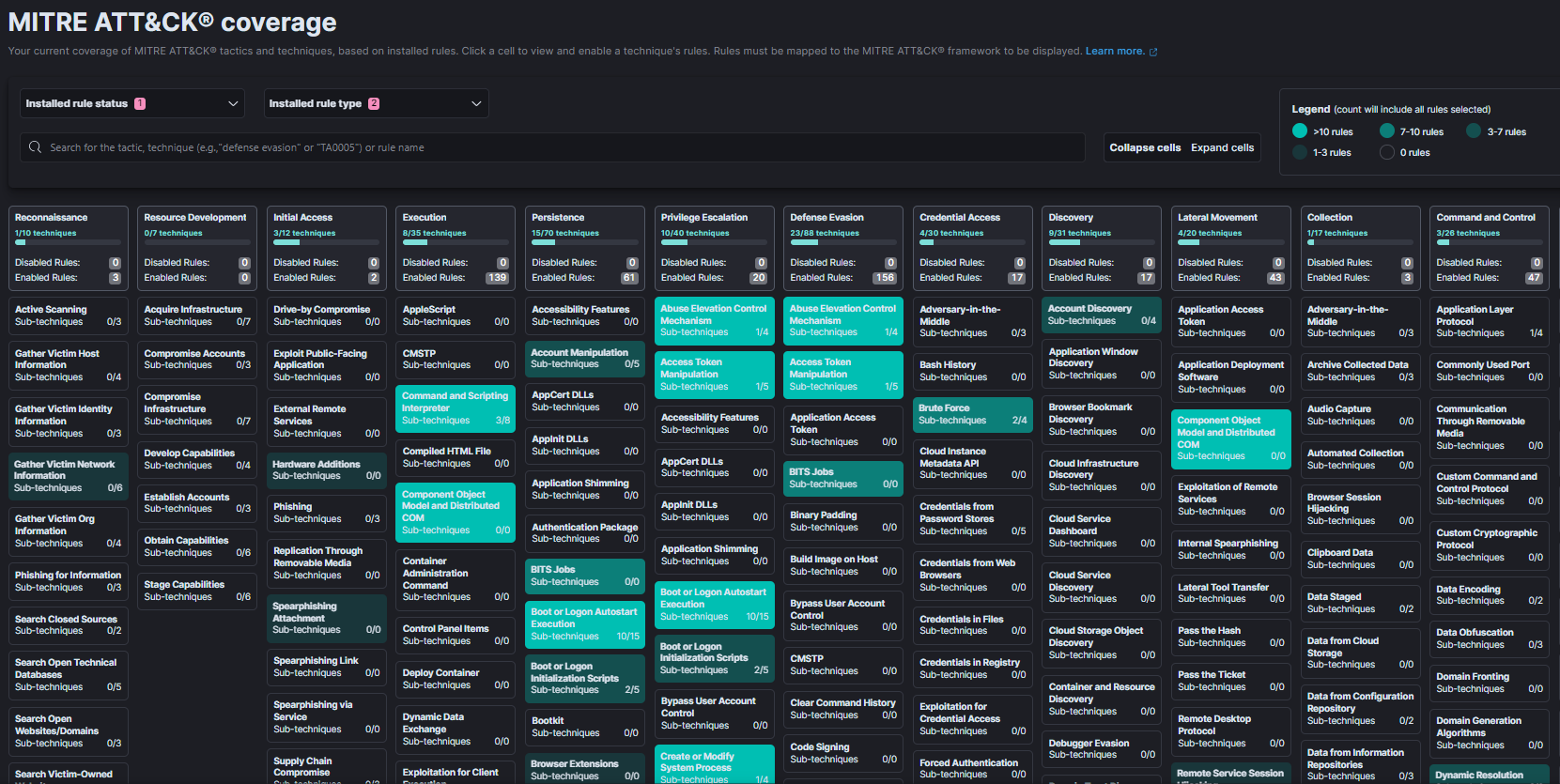
-
(Optional) Download and convert SIGMA rules to Elastic Detection Rules IAW 262COS-SOP-ELK-002
-
Export your currently loaded custom detection rules from Kibana: (or download them from
\\fileserver\share\share\ANALYTICS\00_ELASTIC\)-
Navigate to (Security) Alerts
-
Click on Manage Rules
-
Select the rules you want to export and click: Bulk Actions -> Export
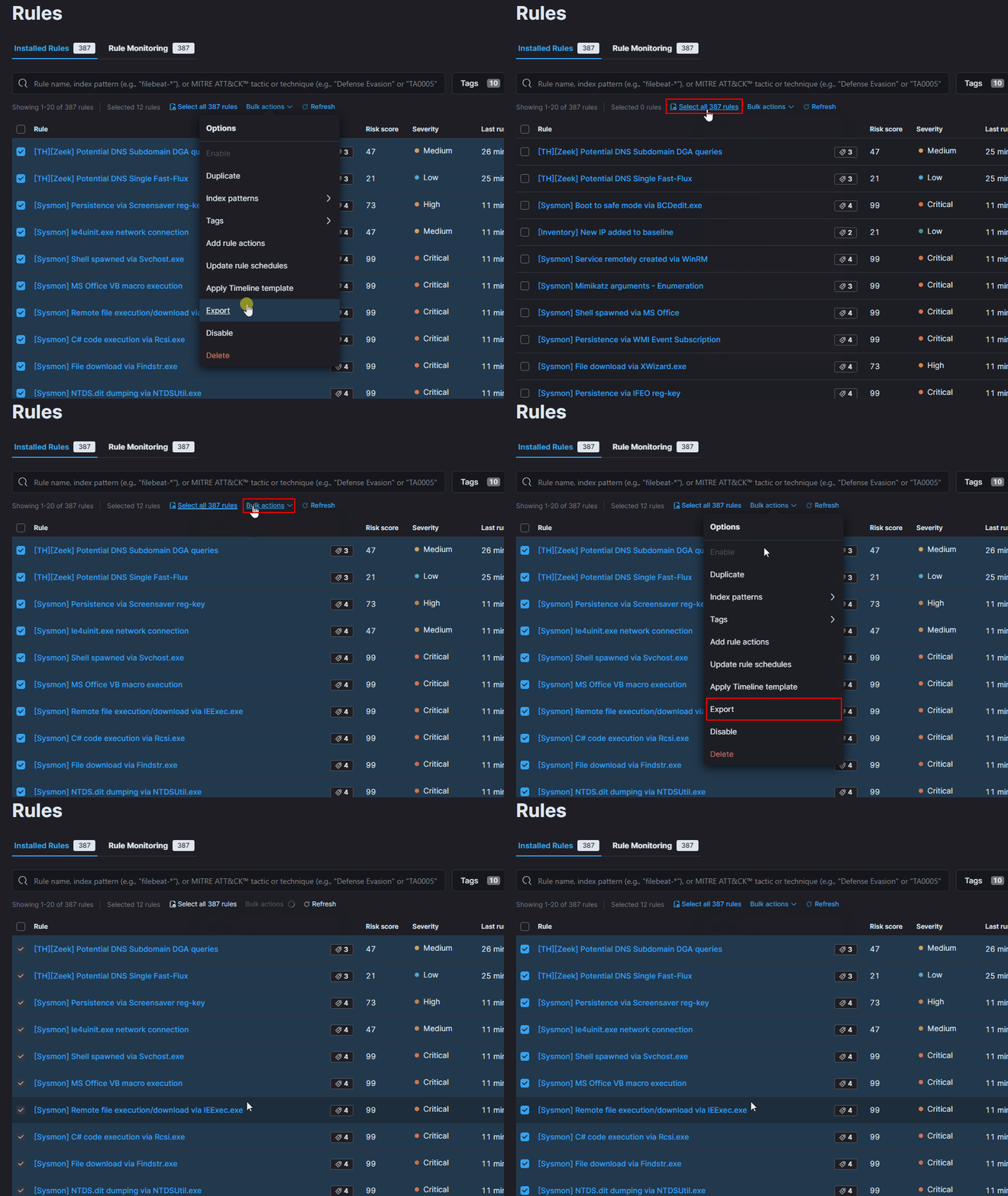
-
-
Copy the
Convert-DetectionRulesToATTACK.psm1script (found in\\fileserver\share\share\SCRIPTS\262COS-MITRE_ATTACK_Scripts-PACKAGE-001\) to your Windows host -
Open a PowerShell terminal, navigate to the script location, and import the script as a module:
Import-Module -Force .\Convert-DetectionRulesToATTACK.psm1 -
(Optional) If SIGMA rules were converted but not imported into Kibana to be re-exported and combined with other rules, then append them to the custom 262COS Elastic Detection Rules to combine the files:
Get-Content "<SIGMA_ELASTIC_RULES_FILE>","<EXPORTED_ELASTIC_RULES_FILE>" | Set-Content "combined_detection_rules.ndjson" -
Run the
Convert-DetectionRulesToATTACKscript against the Elastic Detection Rules file to convert it to a MITRE ATT&CK Navigator Layer JSON file:Convert-DetectionRulesToATTACK -File "<ELASTIC_RULES_FILE>" -Output "detection_rule_coverage.json"
-
Navigate to the MITRE ATT&CK Navigator via web browser
-
At the home page, click on Open Existing Layer -> Upload from Local and upload your newly converted
detection_rule_coverage.jsonfile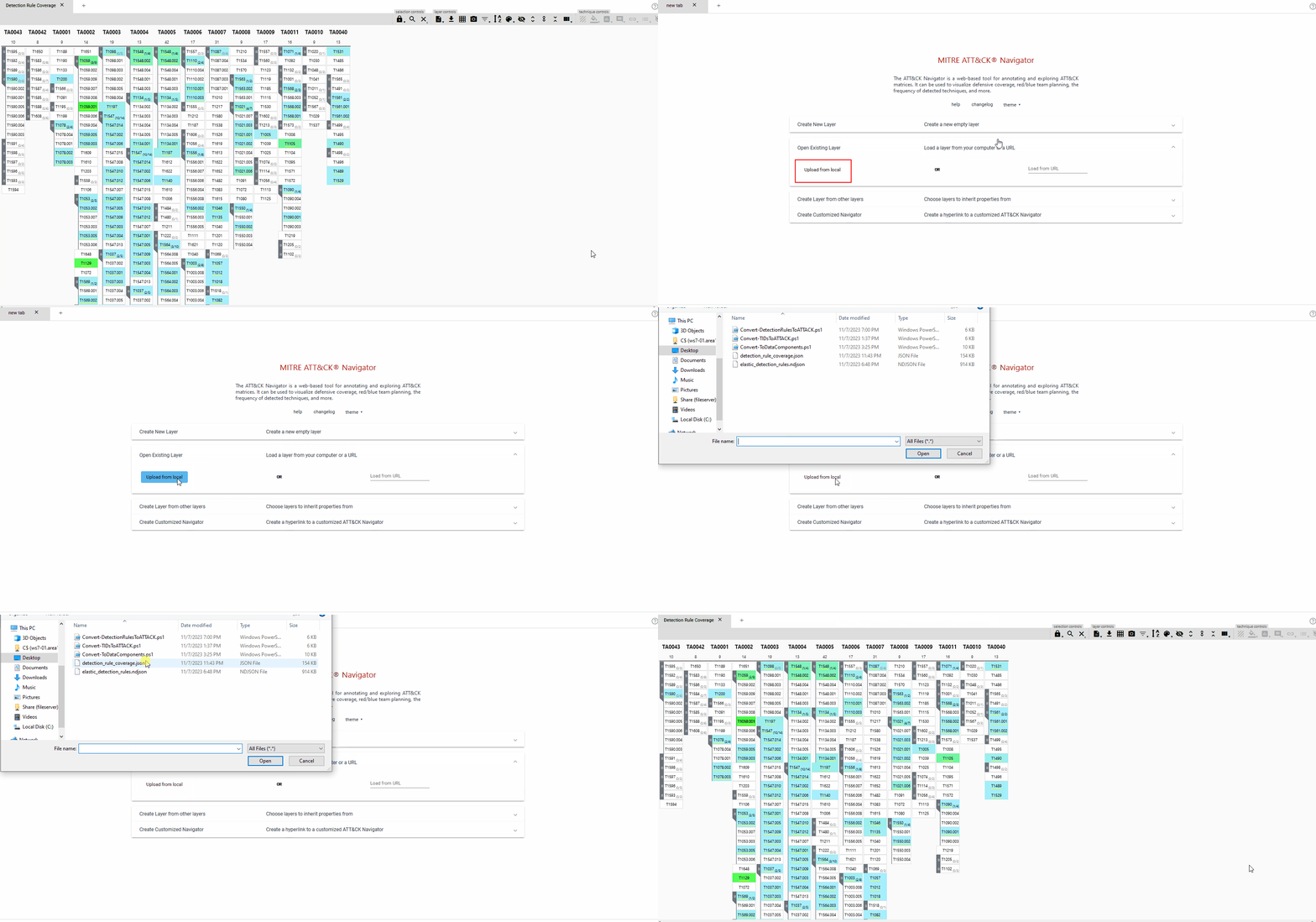
-
A new layer named
Detection Rule Coveragewill be loaded:note- Detection coverage is represented by a blue-green gradient, where no coloring means you have no coverage for a given technique and solid green means the technique has the most detection rules associated with it
- Hovering over a technique cell will show a list of the names of all of your rules tagged to detect the technique – the same information is more easily viewable by selecting the technique and clicking on the metadata button in the top-right corner
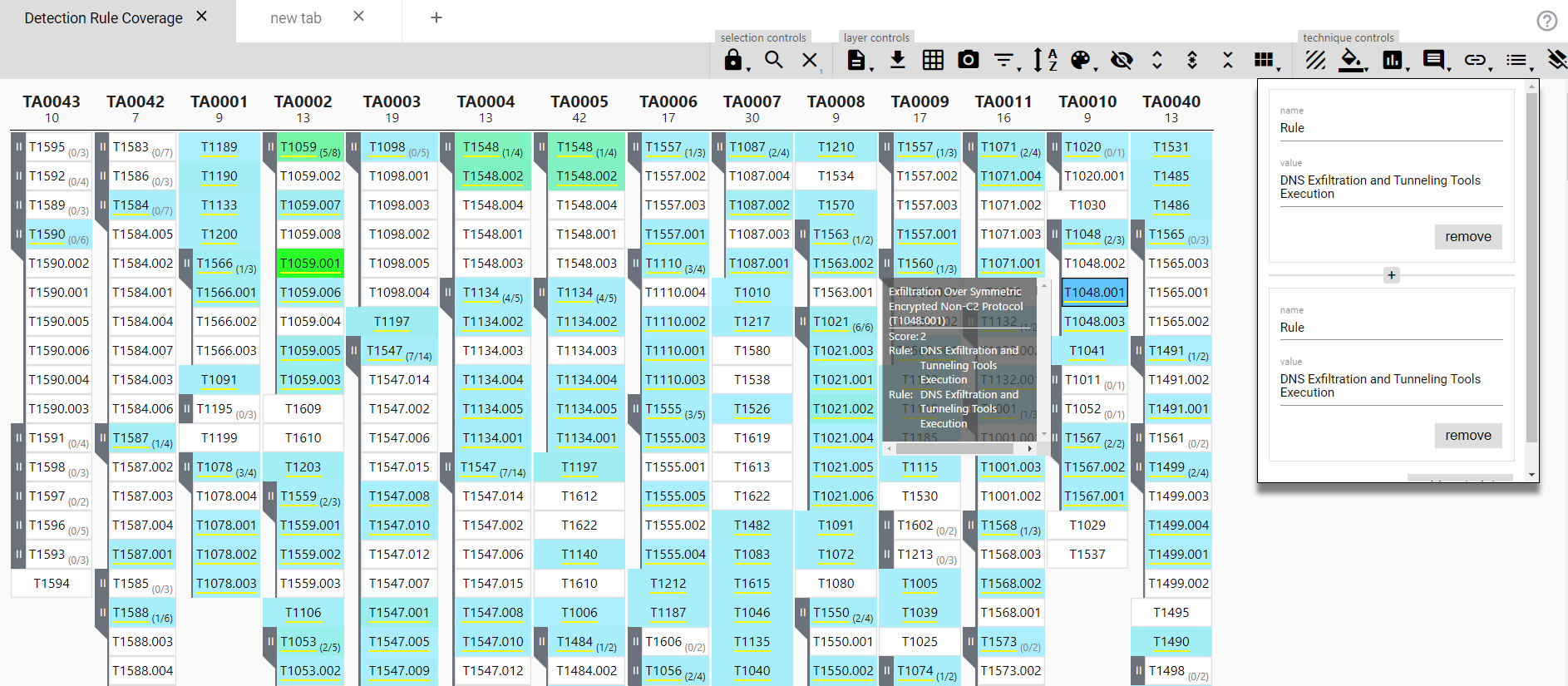
-
You can now customize the layer visuals and render layer to SVG to export the layer as an SVG image file, if desired